Multi-Select Picklists can be tricky to handle when it comes to validations. In this article I will show how a Flow with the “Custom Error Message” element can be used for a validation logic that can be way more complex than with the “classic” validation rules.
The example requirement is to create a validation message upon record save for a multi-select picklist field “Product Interest” as follows:
- We want to allow users to choose additional values, e.g. add “Dairy Products — Butter” to the “chosen” list.
- But we want to prevent users from un-selecting values, e.g. remove “Fruits — Apples” from the “chosen” list.
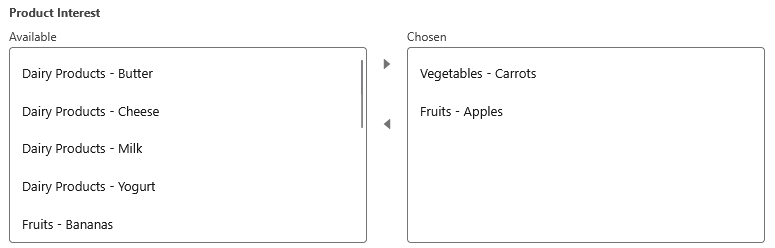
Multi-select picklist field “Product Interest”.
The Data Model
The example will be shown with a multi-select picklist custom field on the Lead object:
| |
The global value set “Product Groups”:
| |
The Flow
See below the preview of the flow we are about to build:
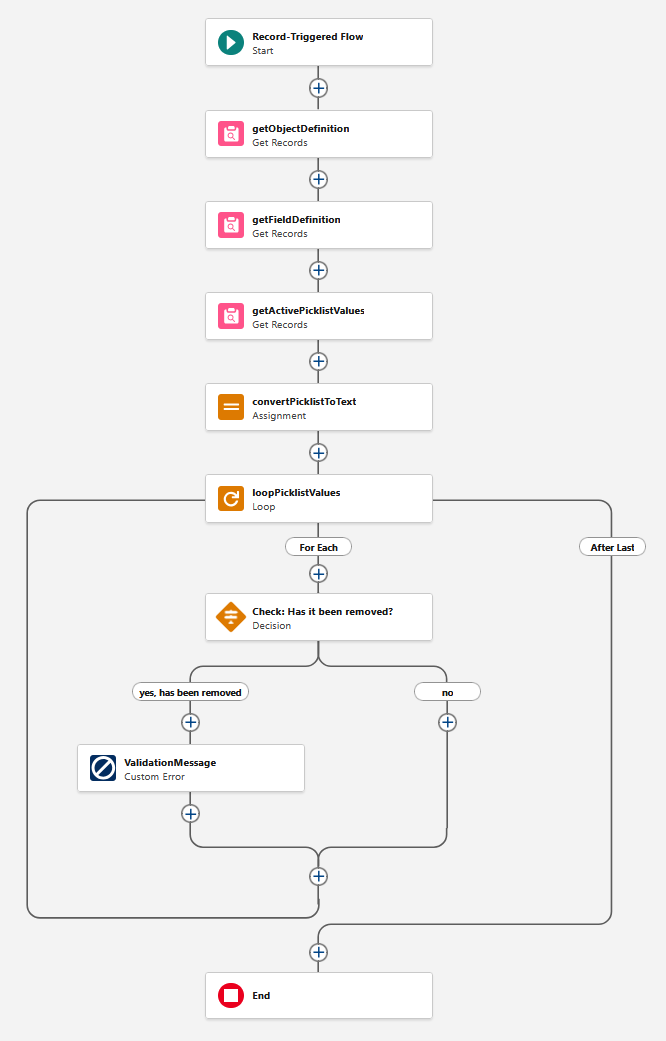
The Validation Flow
Start Element
Create a “Record-Triggered Flow” that runs before the record is saved. (Will also work with an after-save flow if this better fits your use case.)
- Object: Lead (or any other standard or custom object)
- Trigger the Flow When: “A record is updated”
- Condition Requirements: Field “Product Interest” Is Changed = True
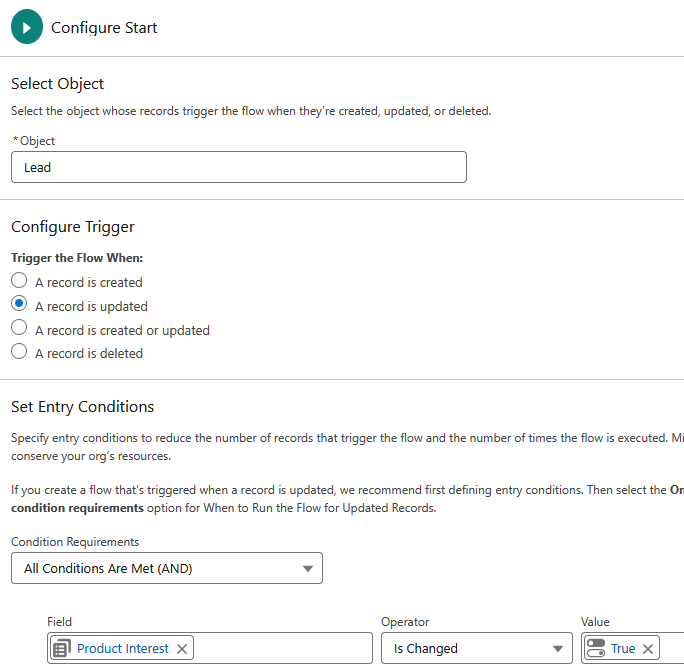
Start Element configuration
Helper Constant
Define a Constant as follows for clearer reference inside the Flow:

Section “Constants”
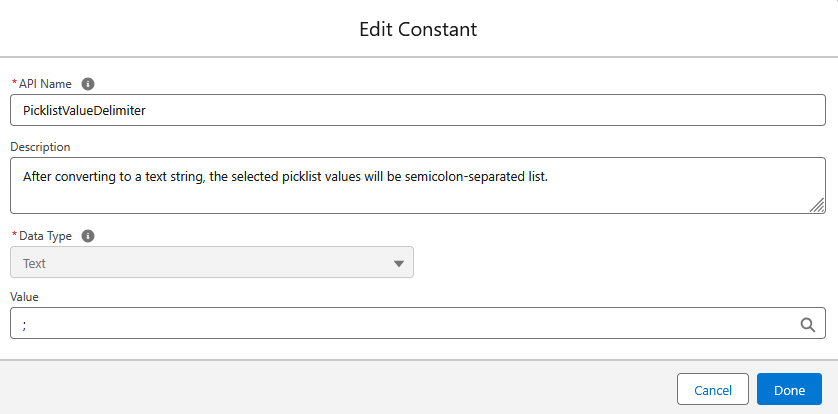
Define the semicolon “;” as a constant PicklistValueDelimiter
Helper Variables
We will need two helper text variables:
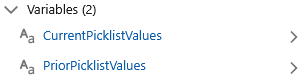
Section “Variables”
defined as follows:
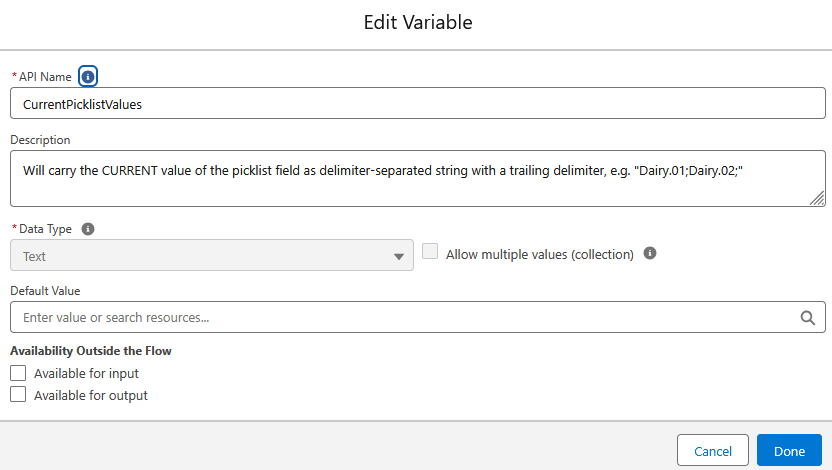
Text Variable: CurrentPicklistValues
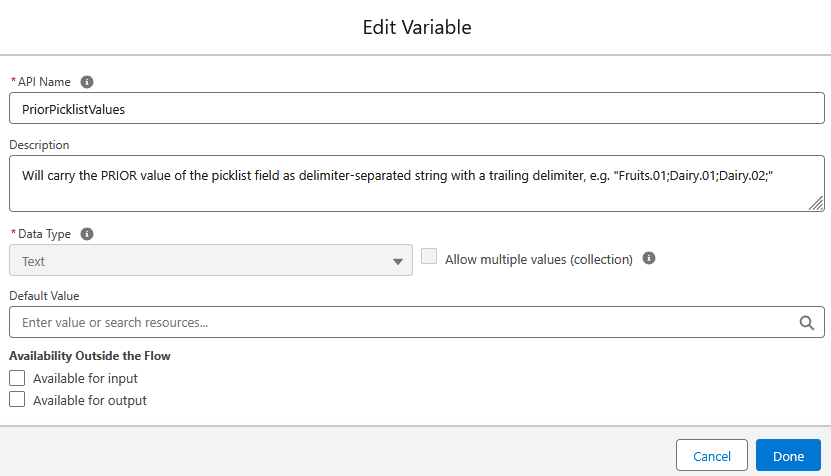
Text Variable: PriorPicklistValues
Get the Object Definition
A Get Records element to get the object “Entity Definition” with the definition of the object we are working on, here: Lead.
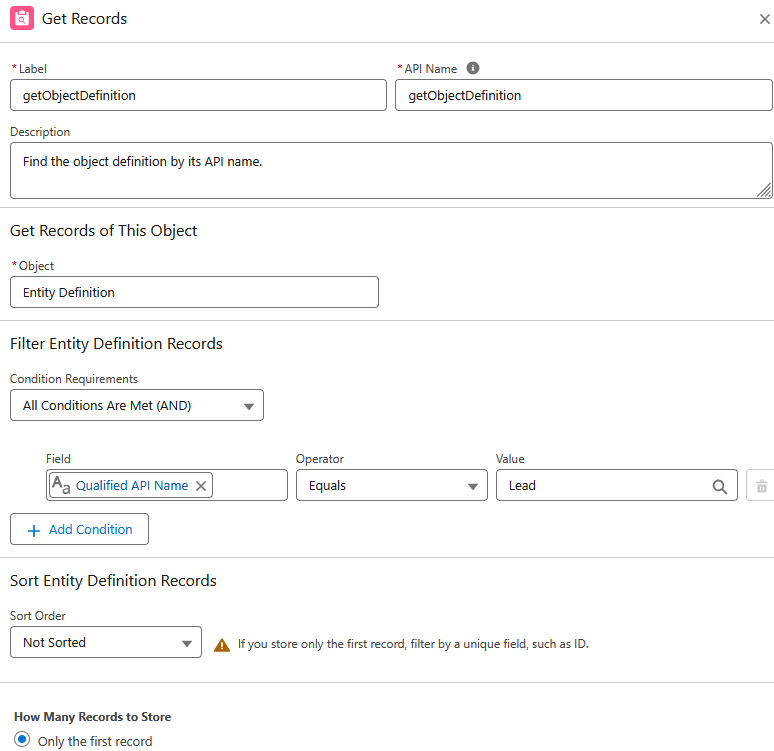
getObjectDefinition
If you want to do this with a custom object, don’t forget to add “__c” to the API Name, e.g. “MyCustomObject__c”.
Get the Field Definition
A Get Records element to query the object “Field Definition” for our multi-select picklist field “ProductInterest__c” using the “Durable Id” we’ve got in the previous step:
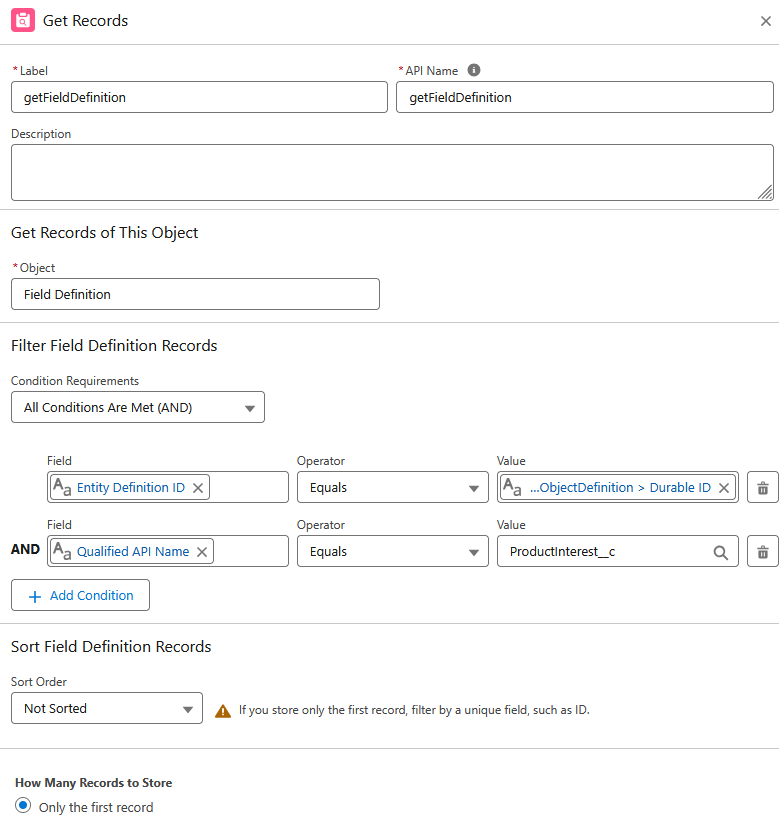
getFieldDefinition
Get the Active Picklist Values
A Get Records element to query the object “Picklist Value Info” for all currently active picklist values for this field:
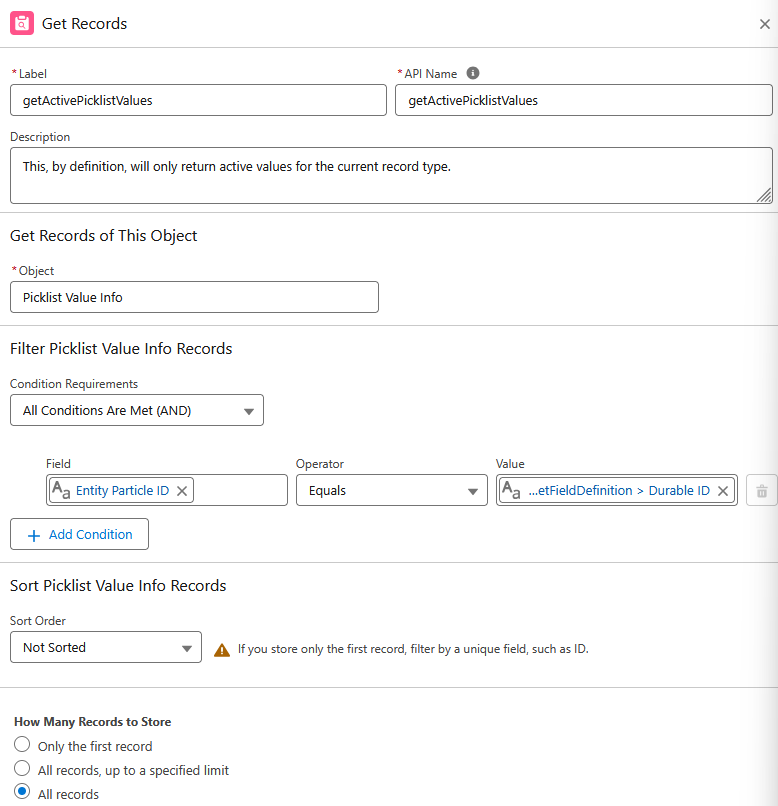
getActivePicklistValues
Notes:
- Make sure the setting under “How Many Records to Store” reads “All records” (unlike the other Get Records elements before).
- This will only return active picklist values. There is no way to query for inactive values with this method.
- In case you are using Record Types, also be aware: This will only return picklist values for the current record type of the current record.
Convert the Picklist Field Values to Delimiter-separated Text Variables
An Assignment Element as follows:
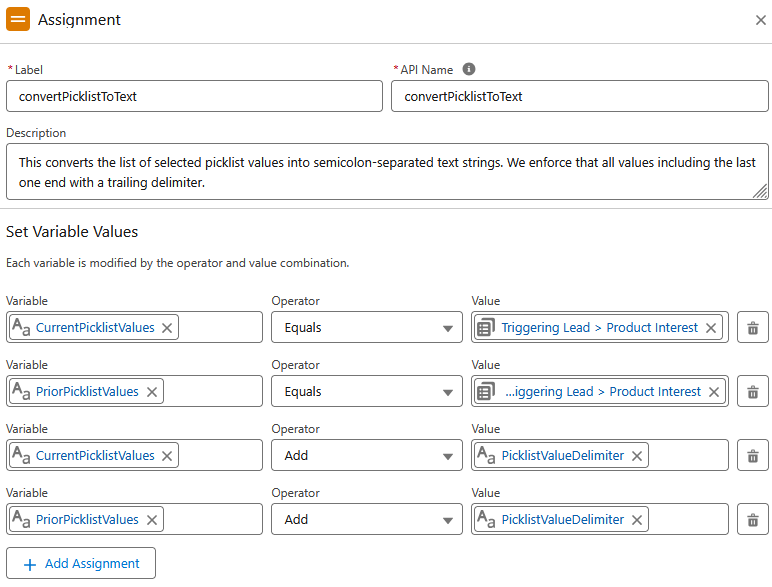
convertPicklistToText
En detail, this reads:
| |
Loop Through the Active Picklist Values
Now we loop through all the values as per record collection returned by getActivePicklistValues:
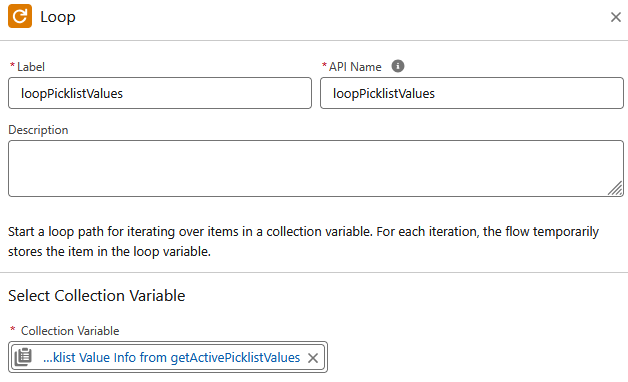
loopPicklistValues
For each known picklist value, we check whether it was present in the PRIOR value but is missing in the CURRENT value. If such case occurs, we know that we need to raise the validation error message towards the user:
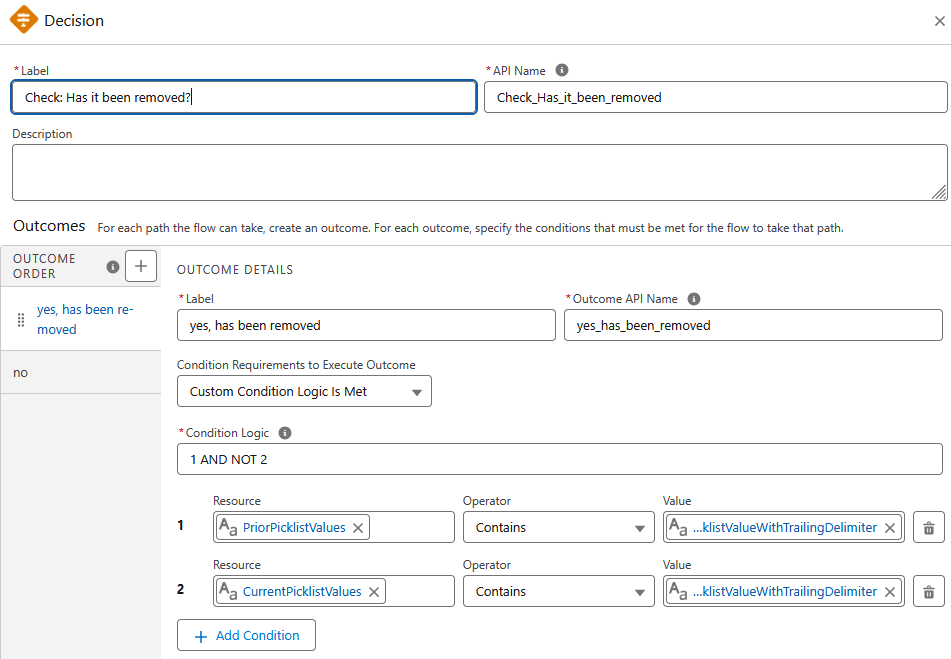
Check_Has_it_been_removed
The condition logic reads “1 AND NOT 2” with the following conditions:
| |
where “LoopPicklistValueWithTrailingDelimiter” is a helper text formula defined as follows:
| |
Validation Error Message
Upon the first occurrence of such case, we use the “Custom Error Message” element to raise the validation error to the user and stop the flow:
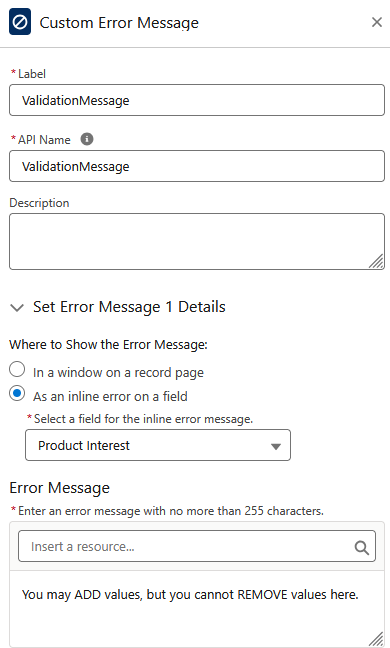
ValidationMessage
Show Case
Now let’s run a test: Go to the example Lead, click “Edit” and play around with the multi-select picklist fields. Once you try to save the record after un-choosing a picklist value, the validation error message will be shown:
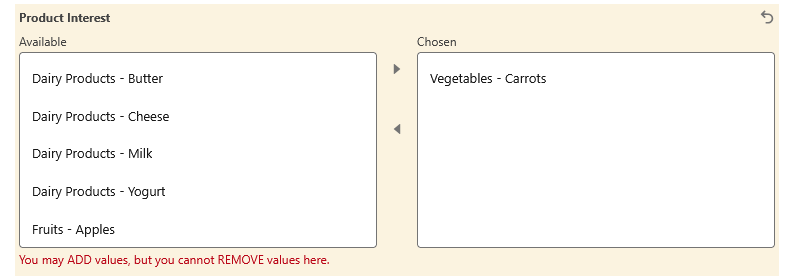
Test Run
Conclusion and Considerations
- The “Custom Error Message” flow element has the same effect as a traditional validation rule: Once fired, the save transaction will fail and the user (in case of a UI transaction) or the caller of the interface (in case of an API/Dataloader transaction) will get the custom error message.
- Record-triggered flows are way more flexible for implementing complex validation logic compared to the formula field-style “classic” validation rules.
- Always be aware of the “order of execution”: In our example, we’ve used a before-save flow as this gives best performance in such scenario and we know that, by our design, no other logic will touch the picklist values on our record. But you need to assess whether other parts of other flows might update the picklist fields and you need to put the validation elsewhere in the order of execution, e.g. by setting “Trigger Order” in the flow properties and/or switching to an after-save flow.
- The “Get Records” on “Picklist Value Info” only ever will see and return active picklist values for the given record type. Hence, we cannot identify the (very special) case where the user decides to un-choose a value that is a now-inactive picklist value: We don’t know about it, hence we won’t check for it in our loop.
This article has been written as per Summer ‘25 release.
For more information about handling picklist values in Flow also see the article “How to get Picklist Labels in Salesforce Flow”.