Salesforce Flow has come a long way and there have been vast improvements over the years and still there are interesting challenges when it comes to working with collections. But sometimes Flow is way more powerful than expected if you are willing to dig out a not-so-obvious solution.
The challenge here is: How to get from a list/collection of strings/records to a single comma-separated (.csv) formatted string?
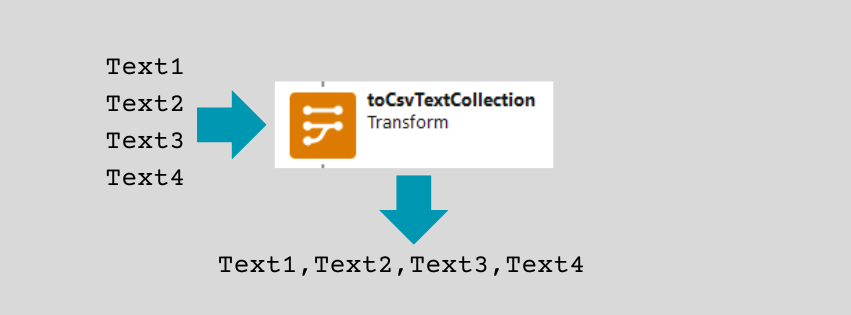
The .csv Challenge
In this post I will present various options and discuss the pros and cons:
- The Basic Approach: a very simple one with just one flow formula needed to convert a text collection into a comma-separated string.
- The Basic Approach with custom delimiters: an extended version of the first approach that is a bit more flexible, but still fits into a single flow formula.
- The Full Approach — with a text collection as the source: a fully featured approach that covers all special cases w.r.t. escape sequences and delimiter configuration, but requires more steps than just a single flow formula.
- The Full Approach — with a record collection as the source: same approach, slightly different steps to use the Transform element instead of a Loop.
All options shown are contained in a sample demo Screen Flow that can be found here: CSV_Concatenation_Screen_Flow.flow-meta.xml
Now let’s see, what we can get out of example data as shown below:
| |
The Basic Approach
We take a flow variable of type string collection as starting point and populate it with some test values.
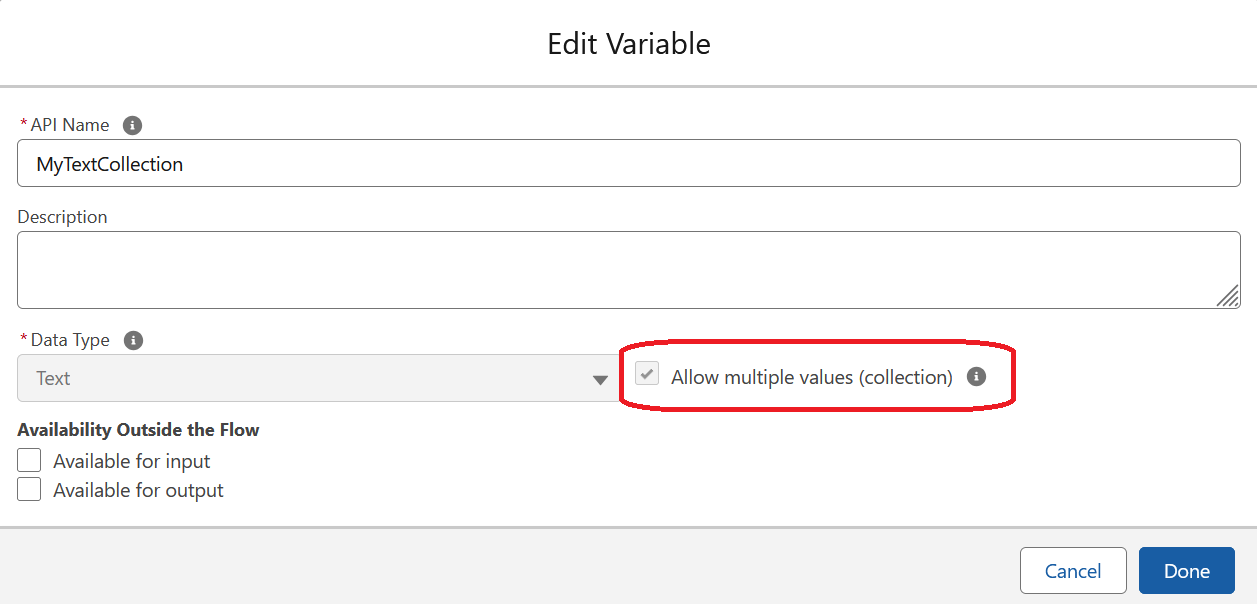
MyTextCollection flow variable.
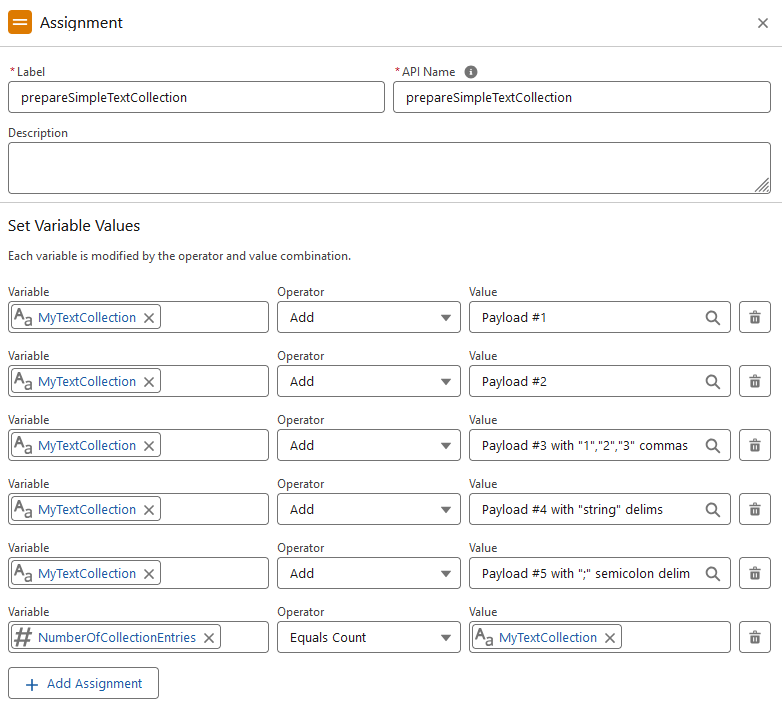
Populate text collection with the demo values.
To convert this string collection to a comma-separated string, we just have to use it in a flow formula and do some simple post-processing to remove the [ at the beginning and the ] at the end that the formula puts there by default. See flow text formula toCsvBasicApproach:
| |
What we get is:
| |
Considerations
This is quick and simple and works very well, if, and only if, the following constraints are ok for your use case:
- Payload SHOULD NOT contain
"because this might or might not confuse the parser of the consumer, depending on its exact implementation. However, we should generally consider this as .csv non-best practice. Hence, do not use if the payload may contain"characters. - Payload MUST NOT contain any comma
,because with this approach the formulas cannot distinguish payload comma from field delimiting comma, so the whole result string will be broken once any payload string contains even a single comma. - Field delimiter is fixed to comma
, - Generally no string delimiter.
Or, to put it simple, this will work great for converting e.g.
| |
into Text 1,Text 2,Text 3
The Basic Approach with Custom Delimiters
For this improved approach, we want to have control over field delimiter and string delimiter. So we define two text variables, FieldDelimiter and StringDelimiter and initialize accordingly:
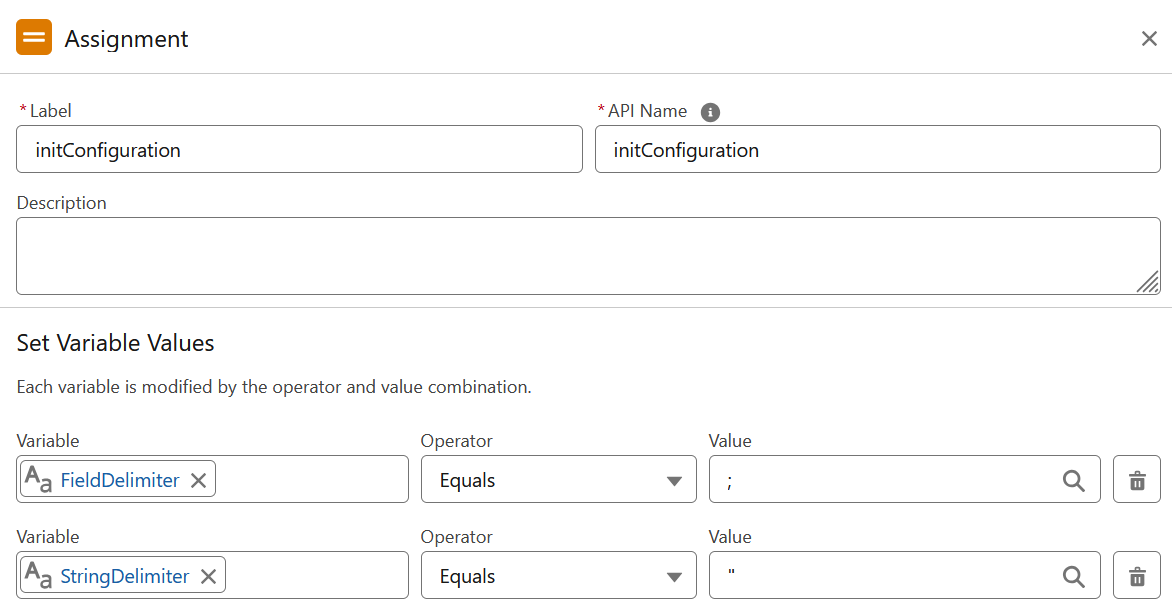
Assign desired field delimiter and string delimiters.
And we now use an enhanced formula toCsvBasicWithDelimitersApproach to convert our text collection:
| |
What we get:
| |
Considerations
This delivers some minor improvements:
- We can configure field delimiter and string delimiter.
- We get the string delimiter properly escaped if contained in payload.
However, we still cannot deal with , comma as part of the payload: The replace operation still cannot distinguish between the comma created by concatenation and the comma that comes as part of the payload.
Again, to put it simple, works well for
| |
to be converted into "Text 1";"Text 2";"Text ""Special Case"" 3"
The Full Approach
To further improve, we need to pre-process the payload strings first before doing the concatenation. The pre-processing allows to handle literally all combinations of string delimiter and field delimiter also being part of the payload.
There are two options, depending on where the string collection originates from:
- Case A: To pre-process a text collection, we put a Loop around our text collection with a single assignment element inside the loop. The actual work is done within a formula field again.
- Case B: If the payload data happens to originate from the text field of a record collection, it is easier to combine two Transform elements to do the trick without the need for a loop. (N.B.: This will use an enhancement of the Transform element available in Winter ‘25.)
Case A: Text Collection as the Source
In total, the steps in the flow are:
- Put together the text collection as in the previous examples.
- Loop through the text collection with one assignment element inside the loop for a formula to do the pre-processing.
- Access the resulting text collection via Formula that does the post-processing into a single .csv formatted string.
The Loop will take the initial text collection…
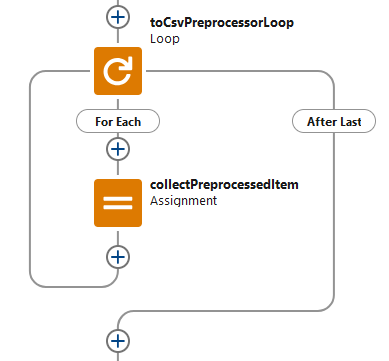
Loop through text collection
… and access each source text item via the formula toCsvPreprocessedLoopItem that does the pre-processing…
| |
…and collects it into a new text collection named PreprocessedTextCollection:
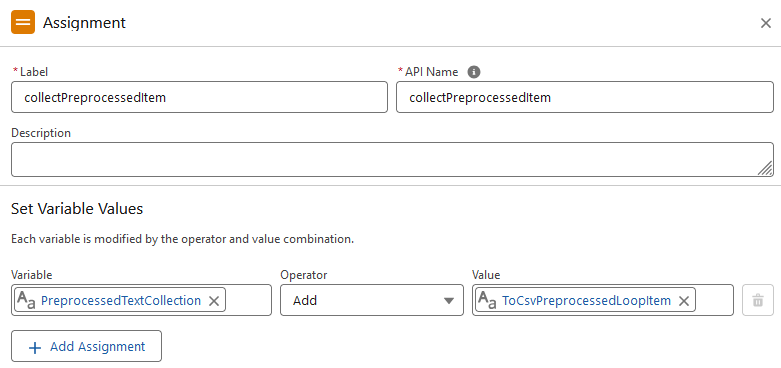
Assignment element inside the loop
All items in the text collection now are pre-processed as follows:
- All string delimiters are escaped by duplicating them, e.g.
"to"" - All
%characters inside the payload are URL-encoded to%25 - All comma
,characters are URL-encoded to%2C - Whole payload enclosed in string delimiters, e.g.
"payload"
Now we can access this pre-processed text collection via the formula toCsvPreprocessorApproach…
| |
…to get this built-to-order and properly escaped .csv string:
| |
Case B: Record Collection as the Source
If the source data comes from record collection anyway, we can avoid the loop by having the Transform element do the tricks.
In total, the steps in the flow are:
- Get Records element to retrieve the Source Data, here: Accounts
- Transform element #1 to pre-process the desired field, here: Account.Name
- Transform element #2 to put all Account.Name fields into a simple text collection.
- Access the resulting text collection via Formula that does the post-processing into a single .csv formatted string.
We start with getting the Account records in question via a Get Records element. For this example we assume, that it returns 4 Accounts with Account names as given in our example data above.
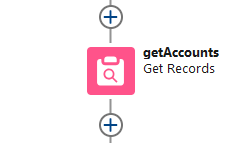
Get Records Element
Then we use a Transform element that will take the Accounts collection from the previous step and will return another Accounts collection for temporary use. This Target Data collection will have the pre-processed version of Account name.
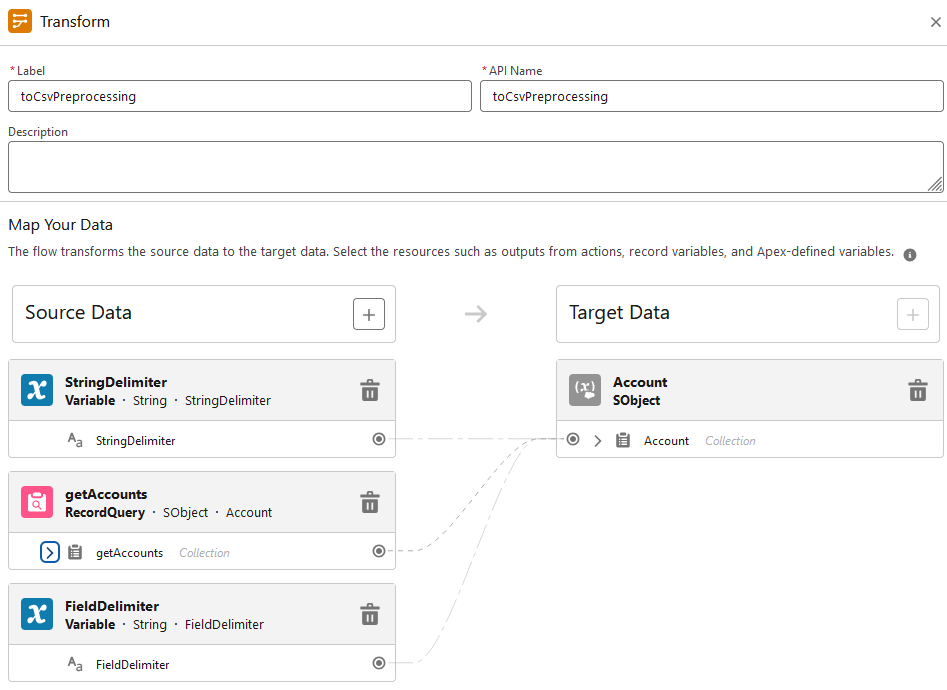
Transform Element #1
It will map Account.Name from Source Data to Account.Name in Target Data with the following formula for the pre-processing:
| |
We get our Account names pre-processed as follows:
- All string delimiters are escaped by duplicating them, e.g.
"to"" - All
%characters inside the payload are URL-encoded to%25 - All comma
,characters are URL-encoded to%2C - Whole payload enclosed in string delimiters, e.g.
"payload"
With the next Transform element, we will take this temporary Accounts collection as Source Data and transform all Account.Name to a simple text collection:
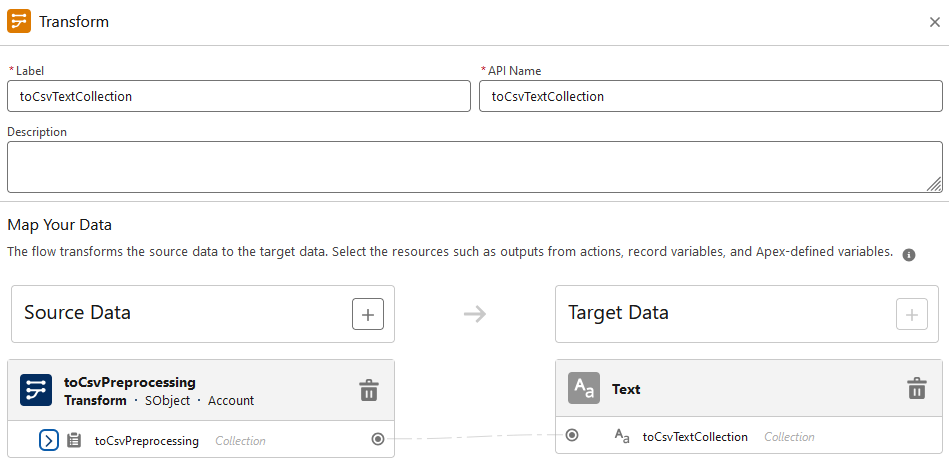
Transform Element #2
Similar to the Basic Approach at the very beginning, we take this text collection as input for a formula field that does all the post-processing to deliver the final .csv formatted string:
| |
Here we go — from this selection of Account names…
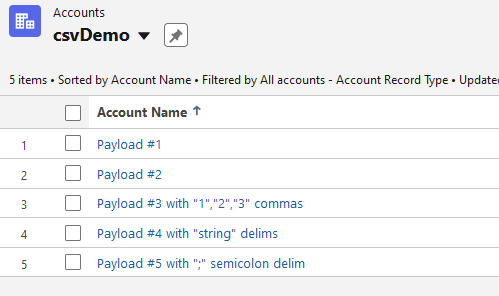
Accounts Collection
…we get this built-to-order and properly escaped .csv string:
| |
Considerations
The “full” approach properly handles all potential field delimiters and string delimiters that might occur inside the payload. So it is supposed to be suitable irrespective of actual content of the payload.
- String delimiter and field delimiter are configurable.
- New Transform element as of Winter ‘25 simplifies pre-processing without the need for a Loop element in certain cases.
- In cases where we still rely on a Loop, we benefit from the fact, that the former limit “execution of maximum number of elements per flow interview = 2000” has been removed in Spring ‘23.