When working with picklist fields in Salesforce Flows, e.g. in a formula or a text template, the flow can only “see” the picklist API value and not the picklist label as shown in the GUI. This might not be an issue in your org if API value and label are configured to be always same and translation workbench is not in use. In all other cases, this can create usability constraints, e.g. when it comes to showing picklist values in Screen Flows or sending e-mails from within the Flow.
I will discuss the following solutions:
- Use the Picklist screen component to extract the label.
- Use a set of Get Record elements to query the PicklistValueInfo standard object in order to find the label for a given picklist value.
- Use an invocable action in Flow to have an APEX class return the information from metadata.
All options in this article focus on handling single records and getting labels to display information on the screen or use text templates, for example to put together e-mails to be sent by the flow.
There are additional challenges when it comes to working with record collections, for example, to be used in the Data Table screen component. There might be a future article about this.
The Basic Scenario
- A Salesforce org with the translation workbench enabled.
- Active languages are English, German and Spanish.
- Translations are in place for English and German only.
- A custom object
MyCustomObject__cand its corresponding custom tab. - A custom picklist field
MyPicklist__cusing the global value setMyPicklistValueSet. - This global value set and its translations are shown in the table below.
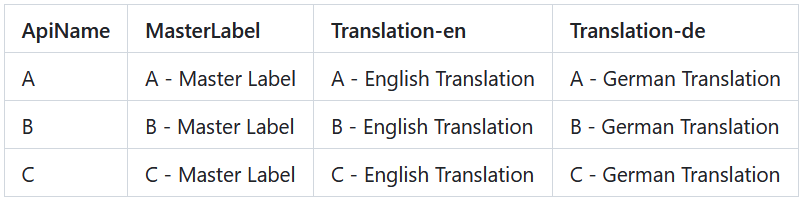
MyPicklistValueSet
Our example record looks like this:
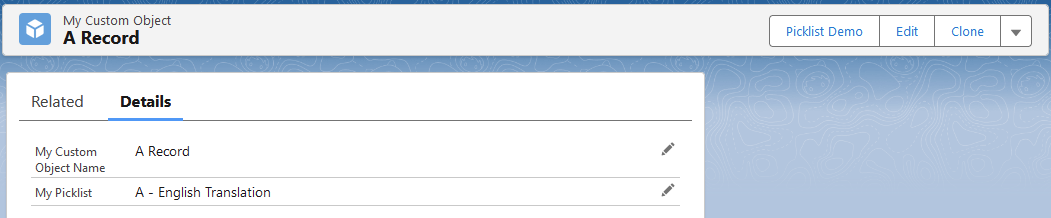
Example Record
We do a simple flow that gets the example record by its record ID and puts its fields on a screen component:
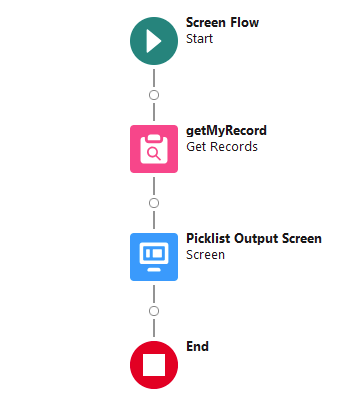
Basic Scenario Flow
The screen component will show:
- The Field component for the custom field
MyPicklist__cof our example record. - A Display Text component that outputs the content of
a) the picklist field directly,
b) a text formula field referencing the picklist field,
c) a text template referencing the picklist field.
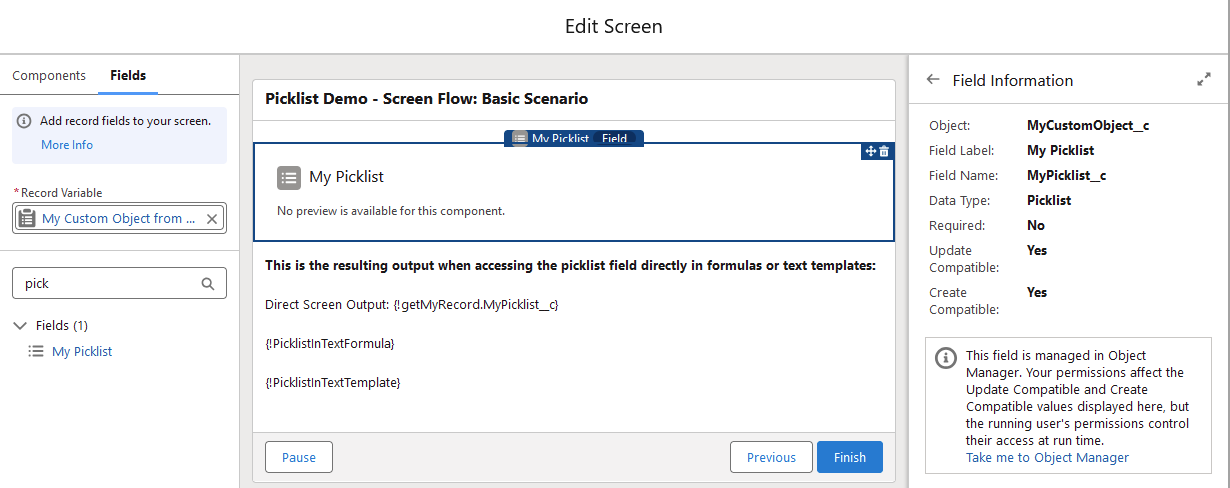
Field Component
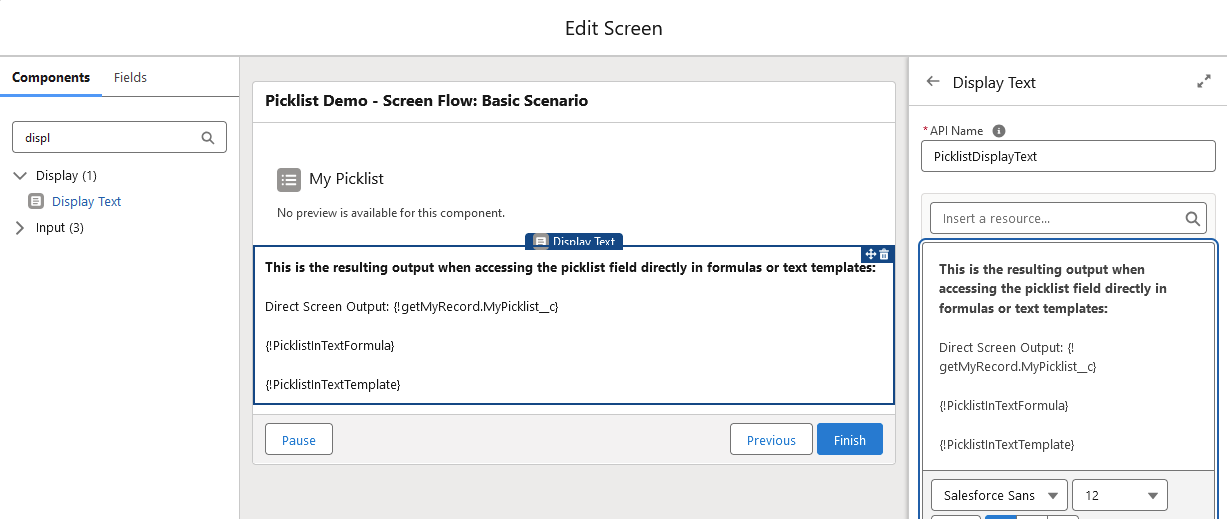
Display Text Component
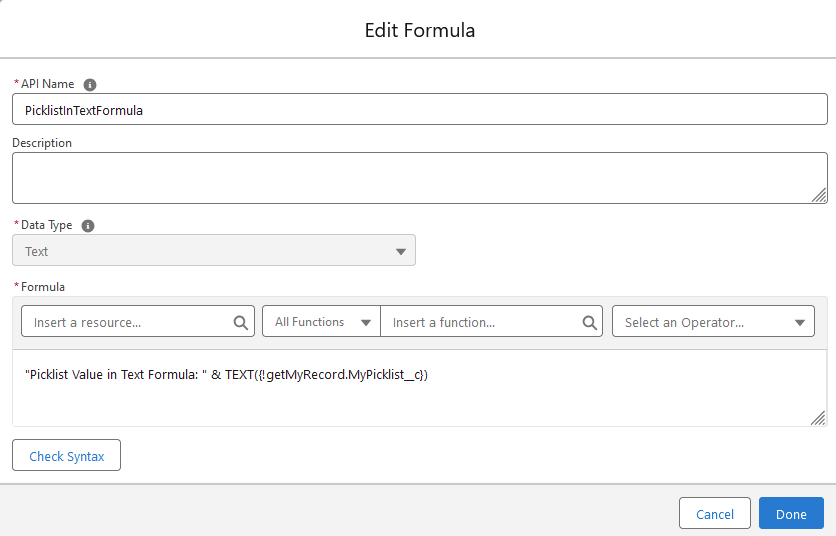
Text Formula
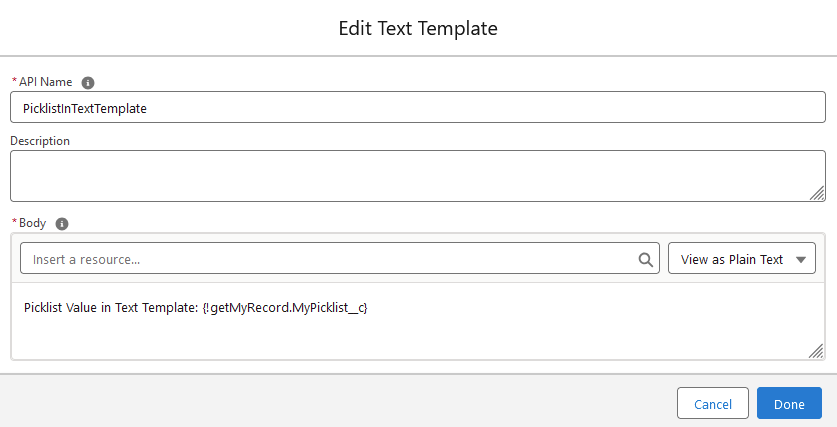
Text Template
And here comes what is wrong with it when we run this flow: Although the field component properly renders the picklist field with its (translated) label as we would expect it, all further references to the picklist only show the API value.
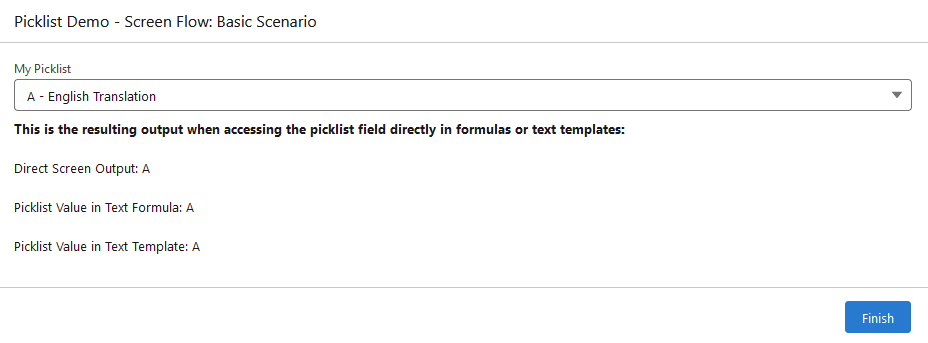
Flow Output
Solution #1: Picklist Choice Set
There is a difference between putting the Field Component of the picklist custom field on a screen and putting a Picklist Choice Set on a screen. As opposed to the basic scenario, here we use the Picklist Choice Set:
- Add a new ressource of type Picklist Choice Set.
- Set Object to the custom object where our picklist field is located.
- Set the picklist field.
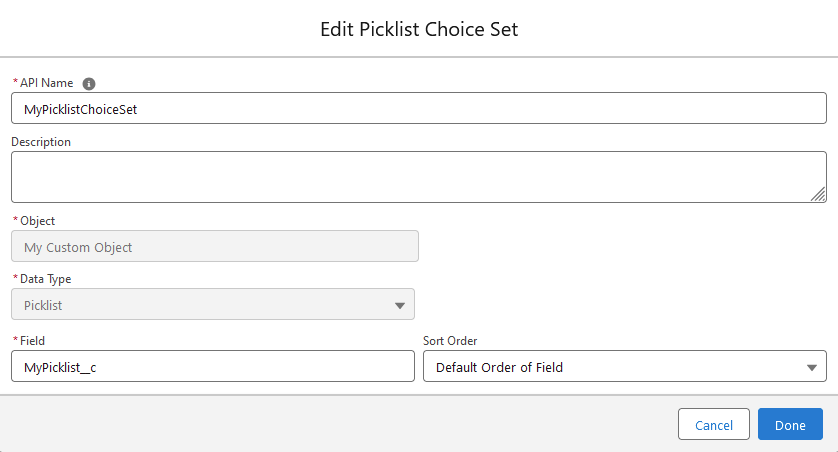
MyPicklistChoiceSet
Now the first component in our screen will be a picklist component that will refer to above Picklist Choice Set:
- Multiple Options = No
- Component Type = Picklist
- Choice = link to Picklist Choice Set as created above
- Default Value = The picklist field value from our example record.
Plus: Add the Picklist Component in the Display Text section.
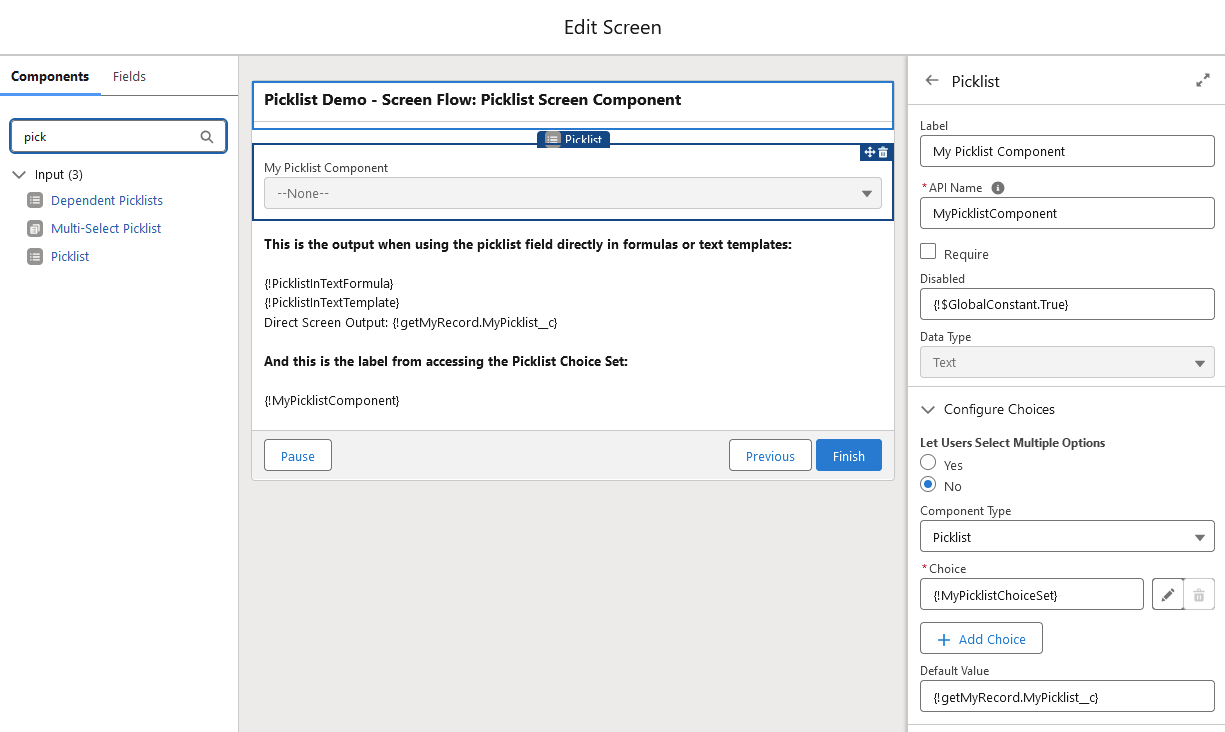
Picklist Component
Our debug run will now look like this:
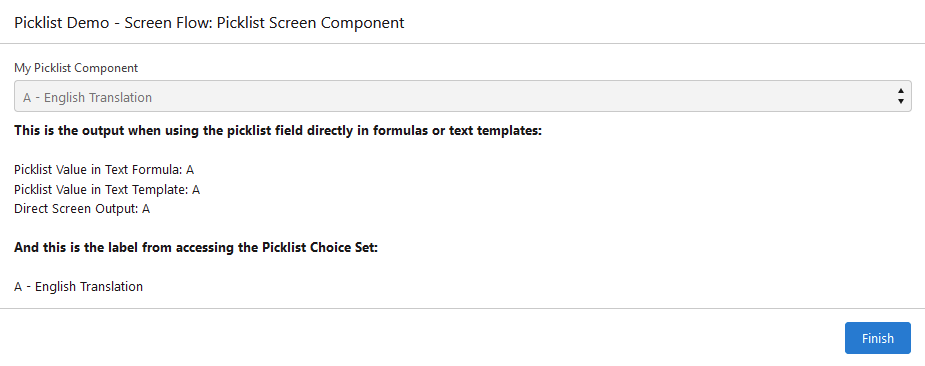
Flow Output
The text output of the Picklist Component will also work in formulas and text templates.
Considerations for this approach:
- Obviously it will only work in screen flows, i.e. not suitable for record-triggered flows nor scheduled flows.
- The Picklist Component must be rendered and visited during the screen flow, i.e. it MUST be shown to the user. It could be set to read-only (Disabled =
{!$GlobalConstant.True}), but not to hidden. Otherwise it won’t be initialized with its default value and will be empty on accessing it. This might or might not be compatible with your specific use case. - Not suitable for record collections, especially for showing picklist labels in the Data Table component.
- Per-Transaction Flow Limits: Does not count towards “Total number of SOQL queries issued”.
- It will always deliver the label for the language of the running user, i.e. either the Master Label or the label as per translation workbench.
Solution #2: „Get Record" to Query PicklistValueInfo
In this approach, we will query the standard objects EntityDefinition, FieldDefinition and PicklistValueInfo with the “Get Record” element in order to get the picklist label:
- Query for the object definition of our object
MyCustomObject__c - Query for the field definition of our custom field
MyPicklist__c - Query for the picklist value info (including the label) for the value in our example record.
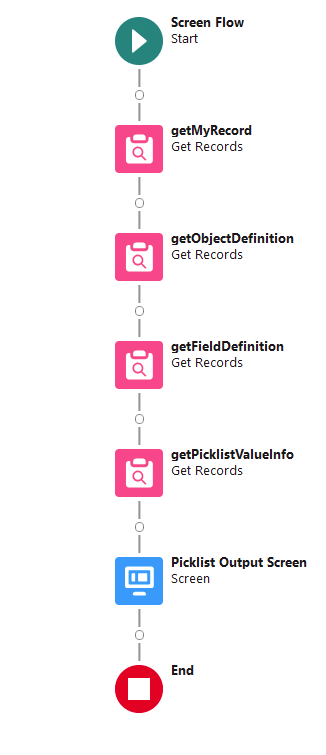
Flow with PicklistValueInfo
Here the details for getObjectDefinition:
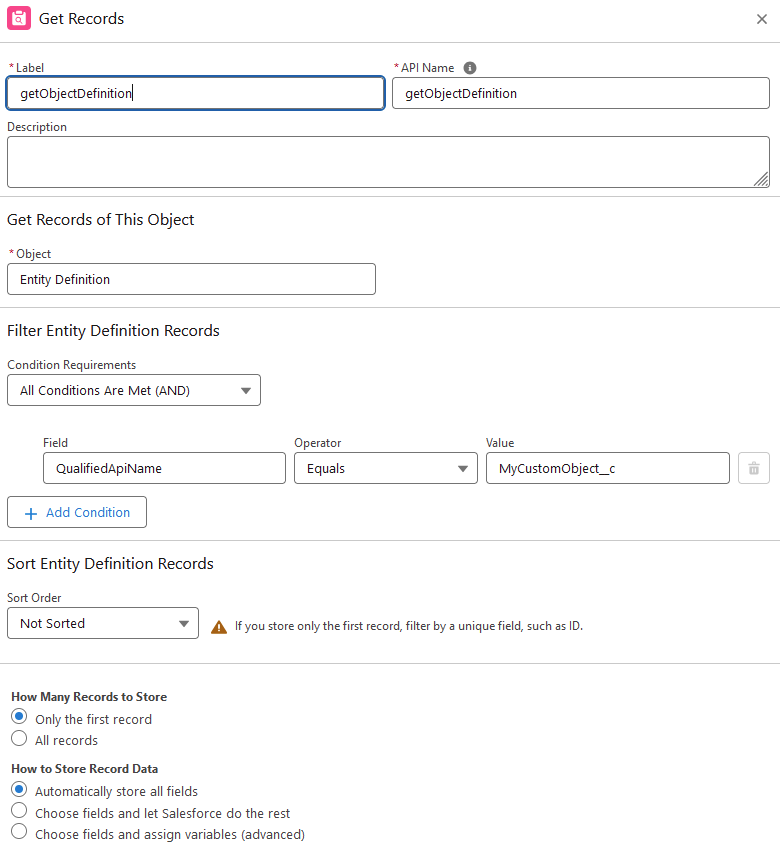
getObjectDefinition
With the DurableId from there, we can query the field definition:
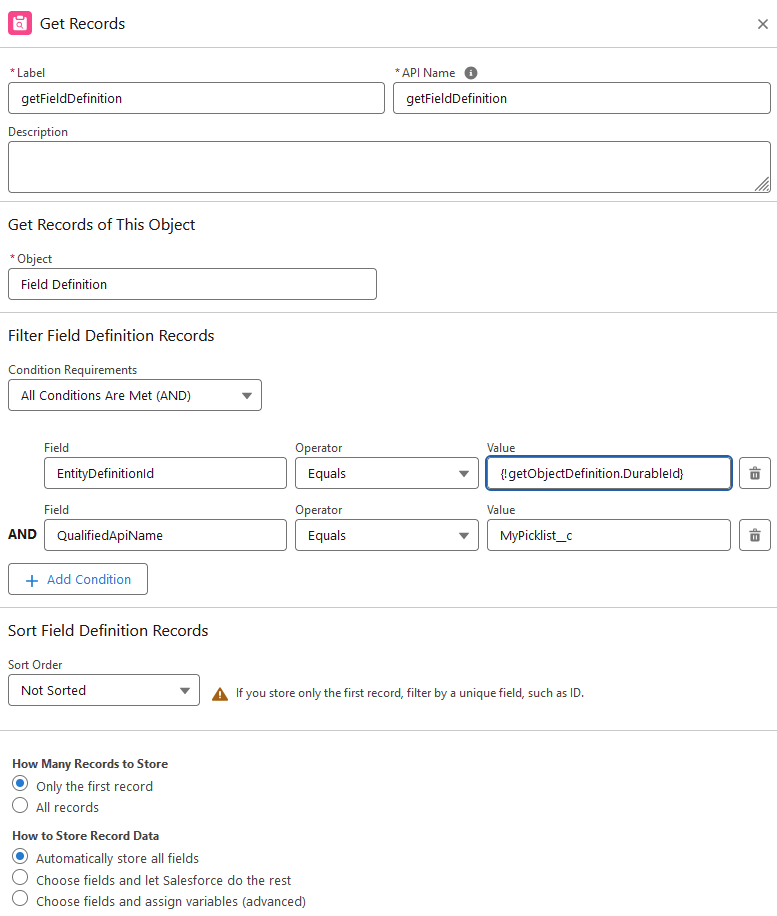
getFieldDefinition
And with the DurableId of the field definition we can finally query for the Picklist Value Info:
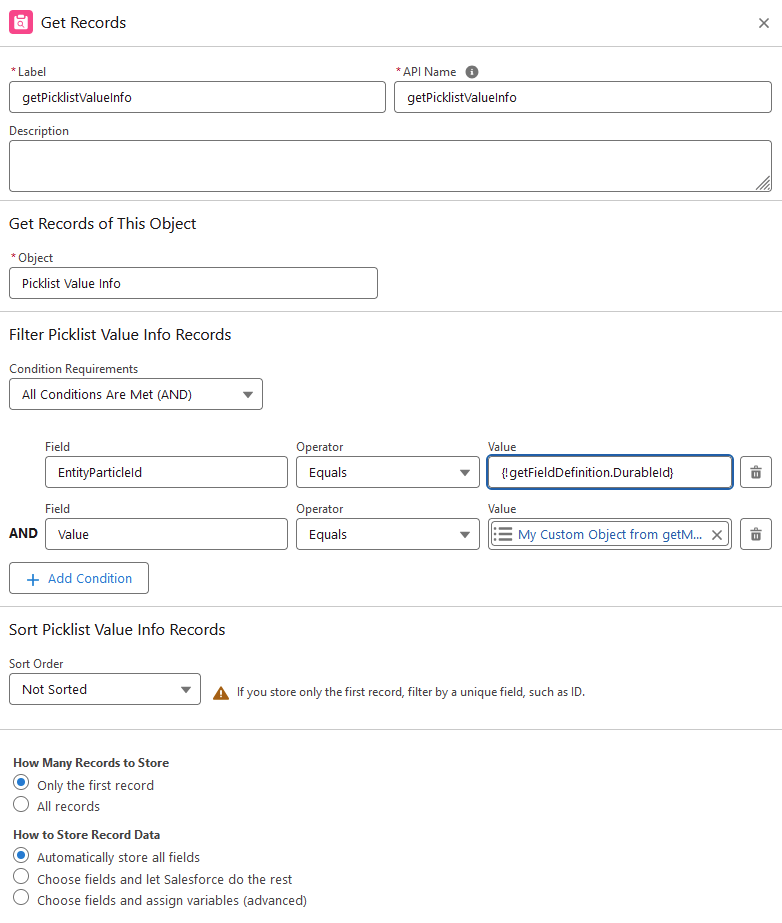
getPicklistValueInfo
Now we are able to reference the picklist label from the result of getPicklistValueInfo and use it in the screen display text or formula fields or text templates:
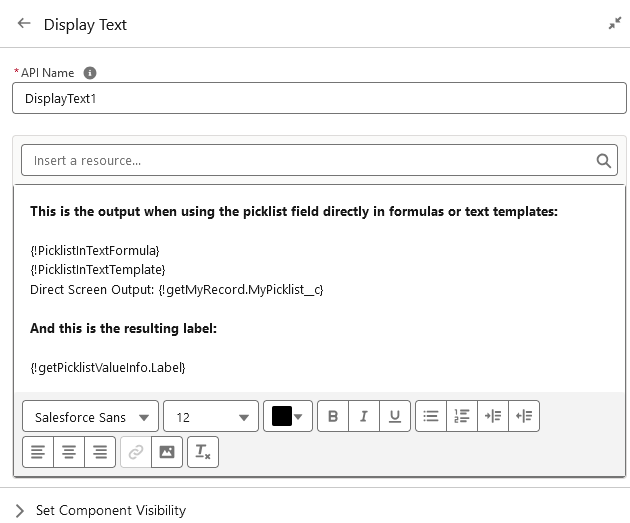
Display Text Screen Component
Our debug run will now look like this:
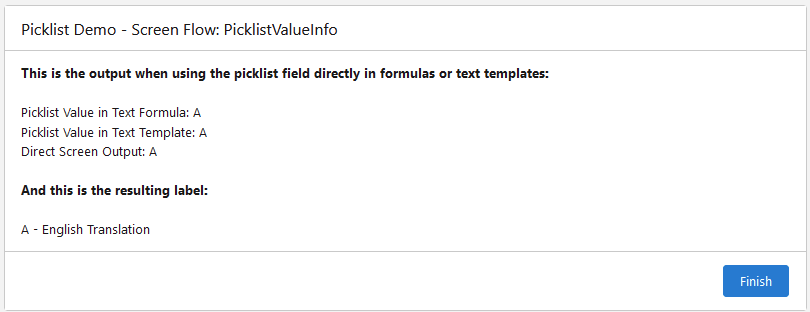
Flow Output
Considerations for this approach:
- Independent of any screen components, i.e. suitable for screen flows, record-triggered flows and scheduled flows.
- Per-Transaction Flow Limits: Each Get Record element counts as a SOQL query towards the “Total number of SOQL queries issued” limit. So be aware when it comes to getting labels for multiple picklist fields and/or with looping, for example, when working for record collections and the Data Table screen component.
- It will always deliver the label for the language of the running user, i.e. either the Master Label or the label as per translation workbench.
Solution #3: Invocable Apex Methods
For this approach, we need APEX code that can access the Schema objects and return labels for API values. Such APEX class can provide its methods as an “Invocable Method” which in turn can be accessed in a flow action.
A good summary explanation for invocable actions can be found under https://www.salesforceben.com/salesforce-invocable-apex-methods-a-complete-breakdown/ and an example implementation for such approach can be found under https://unofficialsf.com/flow-action-get-picklist-values/.
Considerations:
- All pros and cons of APEX coding, e.g. the need for developer capability and capacity and having proper test classes and code coverage in place.
- Per-Transaction Flow Limits: Does not consume SOQL queries within the “Total number of SOQL queries issued” limit.
- Suitable for screen flows, scheduled flows and record-triggered after-save flows.
- Not suitable for record-triggered before-save flows as those do not allow sub flows and actions.
Conclusion
These approaches are basically just workarounds for a, from my view, major lack of feature in Salesforce flow. It definitely should be a standard feature to be able to chose whether we want to see the API value or the label in the flow. I suggest to vote the following ideas on the IdeaExchange: