
The Challenge of Managing “State and Country/Territory Picklists”
This is Part 2 of the series How to Manage Picklist Values. Part 1, Bulk manage Picklist Values, Labels and Translations in Salesforce with Excel, covers the basics of handling standard and global value sets.
The Salesforce feature “State and Country/Territory Picklists” is the trickiest one to manage in this picklist management series for several reasons:
- Metadata deployments cannot create new country or state entries. The out-of-the-box approach requires manual creation via the Setup UI.
- Metadata deployments cannot change the label of a country or state/territory entry. This also requires manual action in the Setup UI.
- Neither metadata deployments nor the Setup UI can set a country or state entry from
Active=trueback toActive=falseonce the feature “State and Country/Territory Picklists” is enabled. - The field dependency between the country picklist values and the state/territory picklist values makes the metadata XML format more complex than for a standard or global value set.
All other relevant operations are possible via metadata deployment:
- Change the Integration Value for any given country code or state code.
- Set a picklist value to
Active=true. - Set a picklist value to
Visible=trueorVisible=false. - Set the org’s default country.
This article covers how to:
- Define the target values and status for “State and Country/Territory Picklists” in an Excel-based data dictionary (or in a corresponding CSV file).
- Retrieve the current
Address.settings-meta.xmlvia the Salesforce CLI (SF CLI). - Compare the target list from the data dictionary with the current settings in the org to derive the list of setup actions that must be performed outside the metadata deployment.
- Execute these actions against the Classic Setup UI via web requests, directly from the command line using the SfMetadataToolkit.
- Generate the target
Address.settings-meta.xmlfrom the data dictionary (Excel or CSV) on the command line using the SfMetadataToolkit. - Deploy the target
Address.settings-meta.xmlvia SF CLI.
Deploy State and Country/Territory Picklists – Full Example
NoteAll commands shown here run on PowerShell 7.x, which is available for Windows, macOS, and Linux. See the end of this article for further details.
Step 1: The Data Dictionary
The data dictionary contains the target list to be deployed to the Salesforce org.
The example data dictionary included in the module contains the default countries and states of a plain trial org:
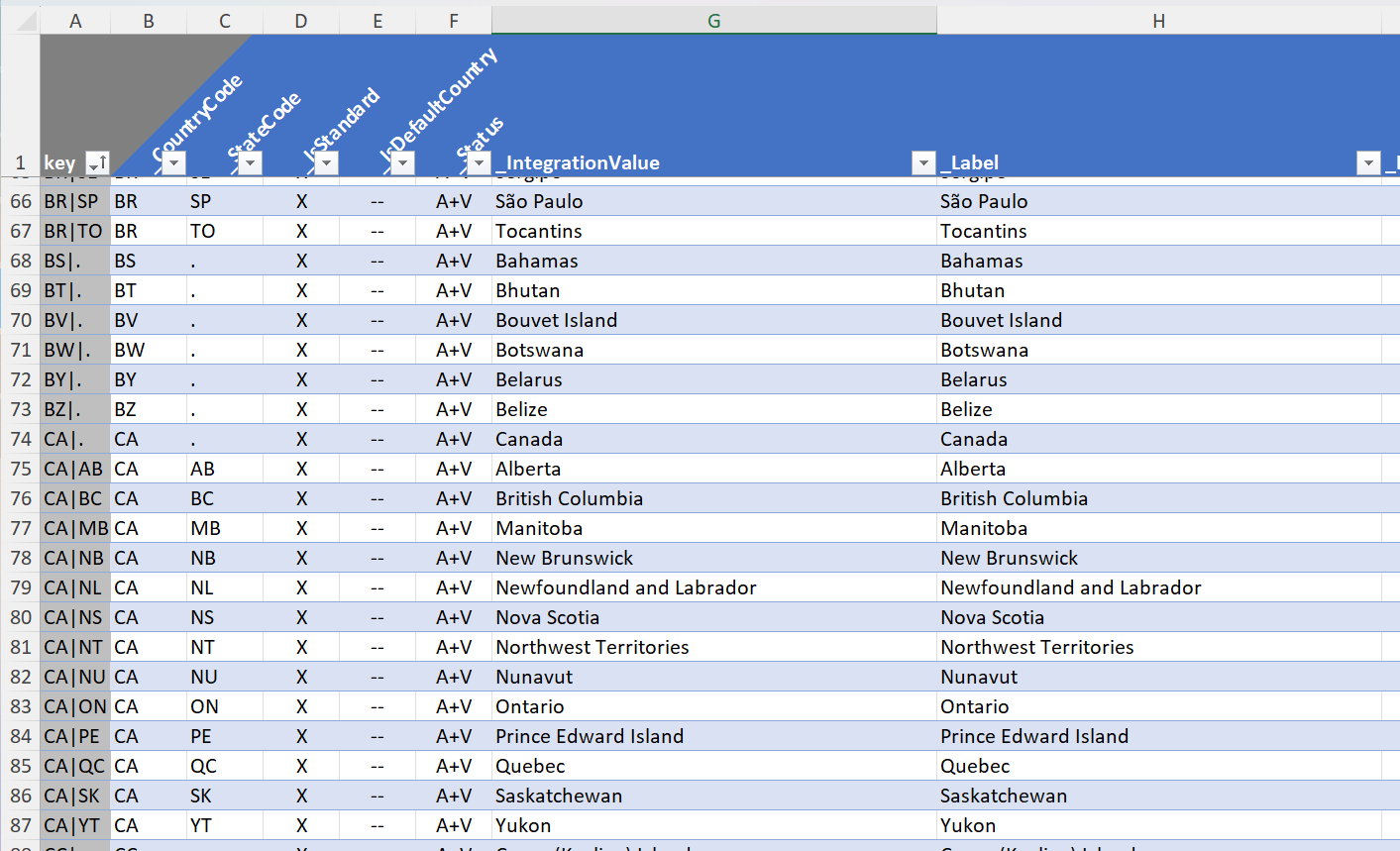
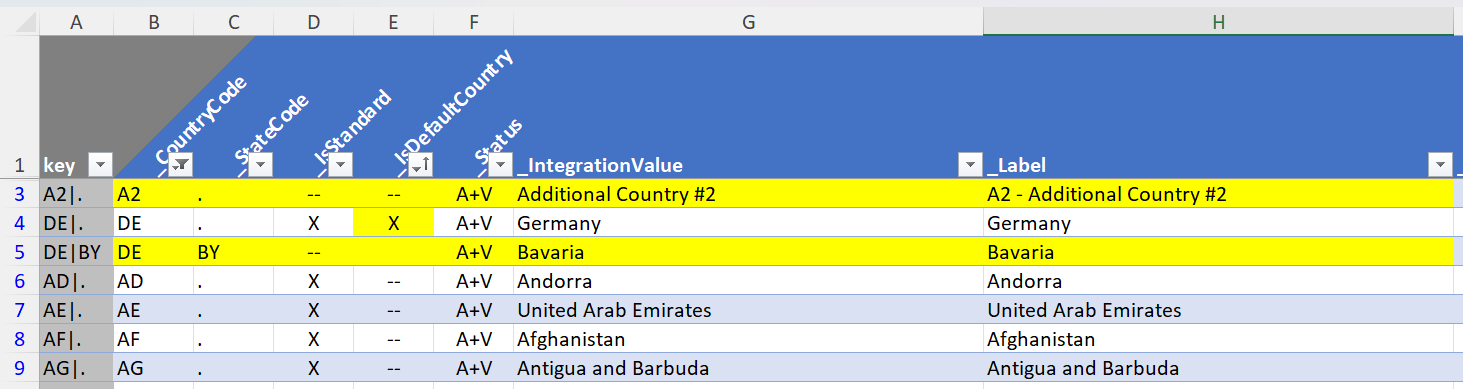
For demonstration purposes, we make some changes to this data dictionary. They are highlighted in yellow, and the sheet is sorted by that color:
- Add the fictional country “Additional Country #2” with the ISO code “A2”.
- Add the state of Bavaria with the ISO state code “BY” to the country of Germany.
- Set “Germany” as the org’s default country.
Step 2: Retrieve the Current State and Country Picklists from the Org
We assume that SF CLI has been set up and configured properly for our demo org. In the project directory, we retrieve the current State and Country/Territory Picklists settings from the SFDX project’s default org:
| |
The metadata XML file is created at:
| |
It looks like the snippet shown below (abbreviated; <!-- ... --> marks omitted parts). Note the following details:
- In the org, someone has created a non-standard country “Additional Country #1” that we haven’t listed in our data dictionary (yet).
- The country “Additional Country #2”, however, is missing from the org.
- “Germany” is not flagged as the org’s default country.
- Germany has no states defined.
| |
Step 3: Compare the Target List with the Current Settings in the Org
As described at the beginning of this article, not every operation is possible with the Metadata API. So we can’t simply generate a new Address.settings-meta.xml from the data dictionary and deploy it.
Instead, we use the Compare-SfStateAndCountrySettings command from the SfMetadataToolkit to see what is needed to get our target list deployed:
| |
- The shell variable
$mnow contains the internal representation of the metadata model as imported from the Excel data dictionary. - The shell variable
$cnow contains the list of actions that need to be performed to make the org match the data dictionary.
The raw output is not very user-friendly, but we can post-process it using built-in PowerShell features:
Example 1: Export the result to an XLSX file that can be opened in Excel (requires the ImportExcel module):
| |
Example 2: Display the full result as a formatted table, in its default sort order (by ISO code). The screenshot below shows an abbreviated version:
| |
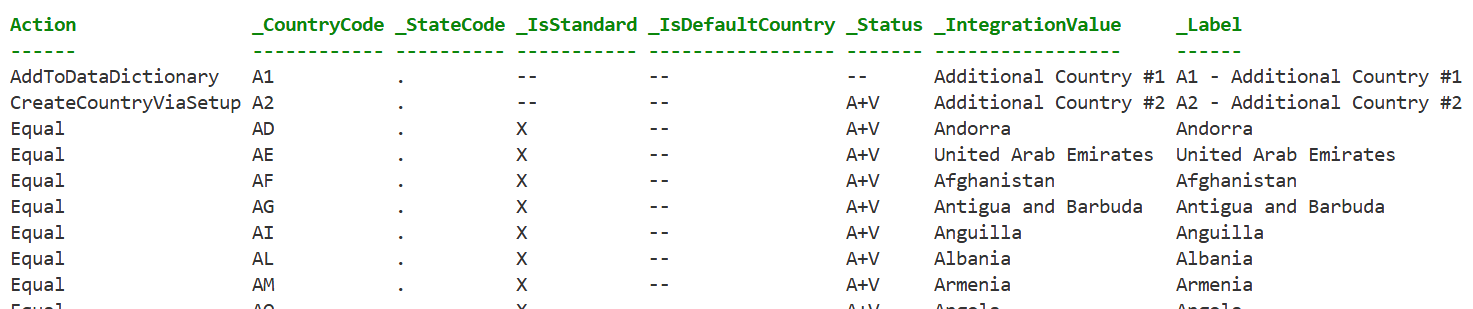
Example 3: The most useful option. Filter out all entries with the action code Equal to focus on the necessary next steps:
| |

In this last screenshot, the comparison output shows:
- In the org, a country with ISO code
A1exists but is missing from our data dictionary. The action codeAddToDataDictionaryflags entries that need to be added to the data dictionary.- In our example, we add the “A2” manually to our Excel data dictionary and flag it as “active” and “visible”.
- Our data dictionary lists a country with ISO code
A2and a German state with ISO codeBY, but both are missing from the org.- Creating new countries or states is not possible via deployment, so they are flagged as
CreateCountryViaSetup/CreateStateViaSetup, meaning they must be created in the Setup UI first. - Likewise, action codes such as
UpdateCountryViaSetuporUpdateStateViaSetupwould appear if the data dictionary requested a change that also cannot be made via metadata deployment, namely changing a label.
- Creating new countries or states is not possible via deployment, so they are flagged as
- The comparison finds a mismatch on the country entry for Germany: the data dictionary says “Germany is the org’s default country”, but the org is not configured accordingly.
- The entry is therefore flagged with the action code
Deploy, because this can be resolved by generating a newAddress.settings-meta.xmlfrom the data dictionary and deploying it with an SF CLI command. - Entries that differ in any other setting, such as the integration value or the active or visible status, would also be flagged with the action code
Deploy.
- The entry is therefore flagged with the action code
- All other entries are flagged as
Equalbecause there is no mismatch between the data dictionary and the org’s configuration.
Step 4: Automate the Setup UI Steps
We could now go through the list and do everything manually in the Salesforce Setup UI. But the SfMetadataToolkit comes with commands that can do this for you via web requests – either step by step or in bulk.
First, we need to obtain an access token and set up a web session that carries the session ID in a cookie. The SfMetadataToolkit simply reuses the authorization you have already established via SF CLI. We can ask the SF CLI commands for JSON output so we can post-process the result as needed.
Try the following in your SFDX project folder. The first command displays information about your current default org, and the second one returns the access token. (Recent SF CLI versions no longer include the access token in the output of sf org display, which is why a separate command is needed.)
| |
But don’t worry: the toolkit includes a wrapper command that does all the behind-the-scenes work for you and stores the result in a shell variable $w:
| |
Now we could go the manual route and create or update entries in the target org step by step:
| |
The easier way is to pipe the output of Compare-SfStateAndCountrySettings (still stored in the shell variable $c from the previous step) to Set-SfStateAndCountryPicklistValue. The latter parses each action code of the compare results and calls the appropriate Add-SfCountryPicklistValue, Add-SfStatePicklistValue, Update-SfCountryPicklistValue, or Update-SfStatePicklistValue command in a single pass:
| |
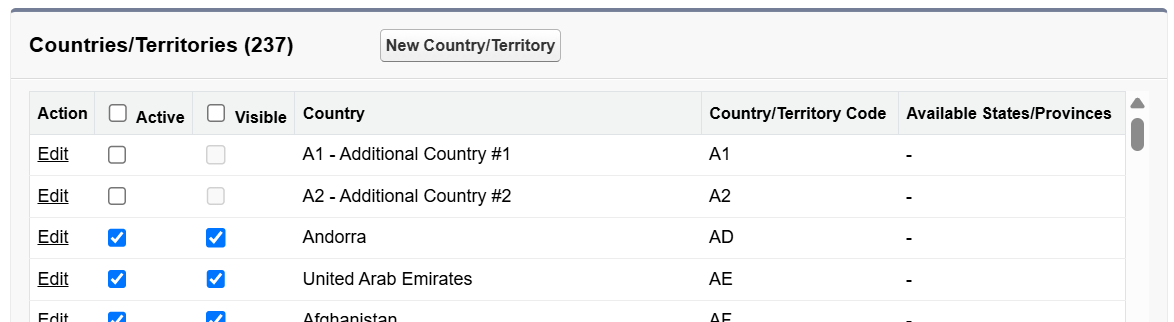
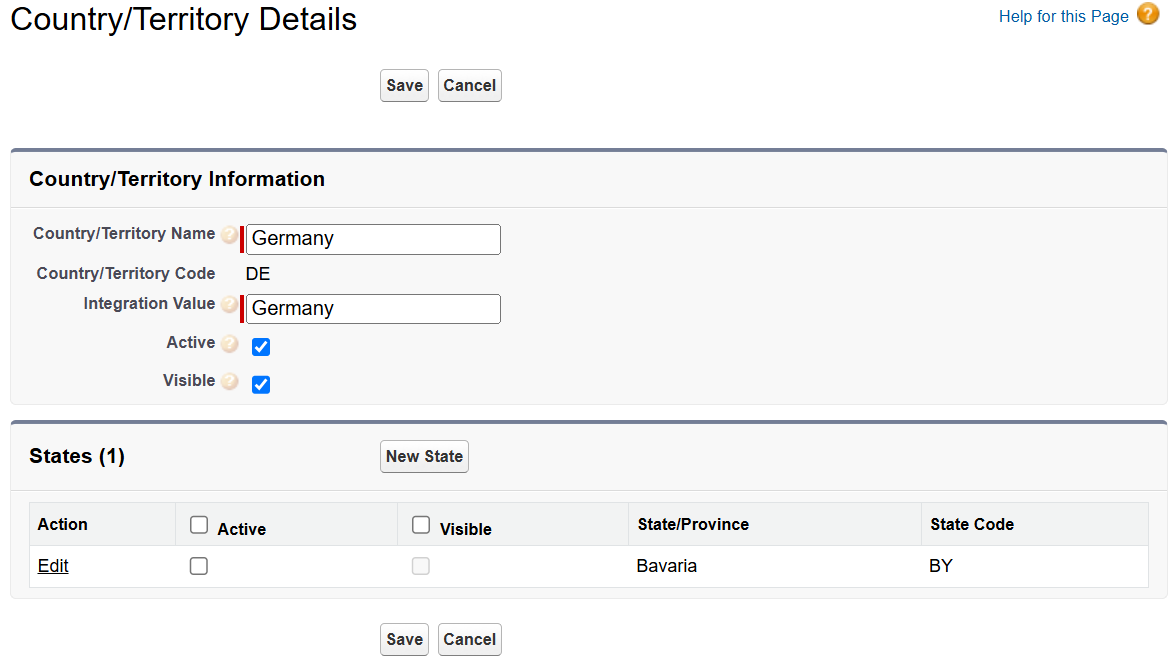
Et voilà, the Setup UI now looks like this on the country level, with “Additional Country #2” added:
And like this on the state level for Germany, with “Bavaria” added:
Step 5: Generate a Full Address.settings-meta.xml from the Data Dictionary
The previous step has performed only the bare minimum of changes that must be made via the Setup UI and cannot be made via metadata deployment. Everything else is handled in this step:
- First, we re-import the latest version of the data dictionary to make sure our shell variable contains all manual updates since the last import, such as the addition of “A1”.
- Then we build the brand-new
Address.settings-meta.xmlfile directly in theforce-appfolder.
| |
Step 6: Deploy via SF CLI
Now we can deploy the target configuration of State and Country/Territory Picklists to the target org:
| |
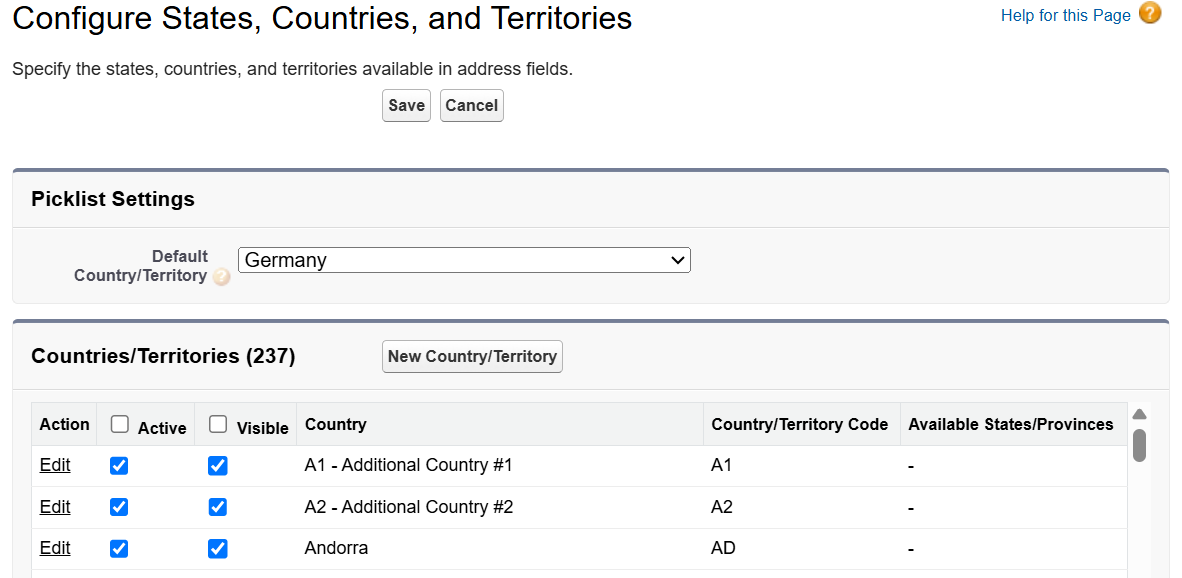
All remaining settings are now aligned with the data dictionary, which you can verify by refreshing the browser page in the Salesforce Setup UI:
- The two additional countries, “A1” and “A2”, are set to
activeandvisible. - The org’s default country is set to “Germany”.
How It Works
For the State and Country/Territory Picklists feature, the SfMetadataToolkit combines various command-line operations, implemented as PowerShell commands, on top of the Salesforce CLI:
- To access the Salesforce metadata XML files, it uses the SFDX project directory and reads from and writes to the
*.*-meta.xmlfiles in theforce-appfolder (using PowerShell’s built-in XML handling). - It does not call the Salesforce Metadata API itself. Instead, you run the necessary commands, such as
sf project deploy startorsf project retrieve start. - For operations in the Classic Setup UI, it runs web requests via standard PowerShell commands such as
Invoke-WebRequest, which has built-in support for form fields, cookies, etc. - For authorization against the Salesforce UI, it uses the org aliases of SF CLI. It runs the corresponding SF CLI commands in JSON mode and uses PowerShell’s built-in JSON parsing to extract the access token and inject it as a session ID cookie into the web requests.
NoteYou don’t need a full developer setup with VS Code, Git, Dev Hub etc. The minimum requirement is the Salesforce CLI itself. Any text editor with XML support and any file comparison tool will do.
You can use the toolkit for any one-off bulk creation of picklist values. The full strength of this approach, however, becomes apparent when you let the data dictionary be the source of truth for your implementation. Because the metadata is generated from the data dictionary, which also serves as documentation, the documentation and the implementation stay in sync.
Known Issues and Constraints
The current version of the SfMetadataToolkit does not yet support translations für state and country labels.
How to Get It
The module requires PowerShell 7.x, which is open source and available on Windows, macOS, and Linux:
The SfMetadataToolkit is published on Codeberg and on the PowerShell Gallery:
- SfMetadataToolkit on the PowerShell Gallery
- SfMetadataToolkit repository on Codeberg
- To install:
Install-Module -Name SfMetadataToolkit
PowerShell directly supports importing from and exporting to CSV files. To work with XLSX files, install the ImportExcel module from the PowerShell Gallery:
- ImportExcel on the PowerShell Gallery
- ImportExcel repository on GitHub
- To install:
Install-Module -Name ImportExcel
What’s Next
This data-dictionary-driven approach has been battle-tested in various projects over the past several years. The PowerShell code is currently being refactored and cleaned up so that it can be published as open source step by step. Stay tuned for more functionality.